Support
Questions? We're on it.
Bug reports, feature requests, and pre-sale questions all go to the same inbox. We read everything and respond within one business day.
Sample files for testing
Scanned documents you can drop into VisionBlitz to see OCR, loadfile export, and multi-page processing in action. Every file is an image-based document that requires OCR (not already-searchable).
Download all samples (.zip)
One file, all four documents. ~0.6 MB.
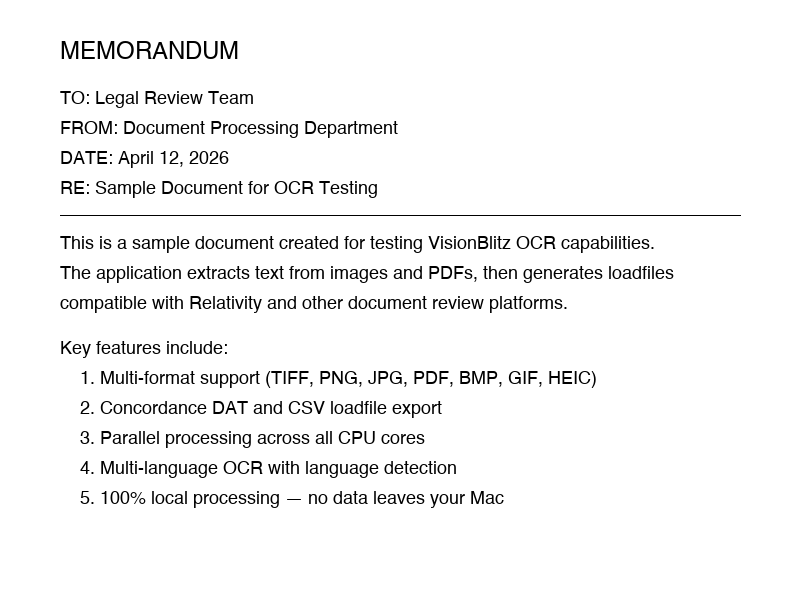
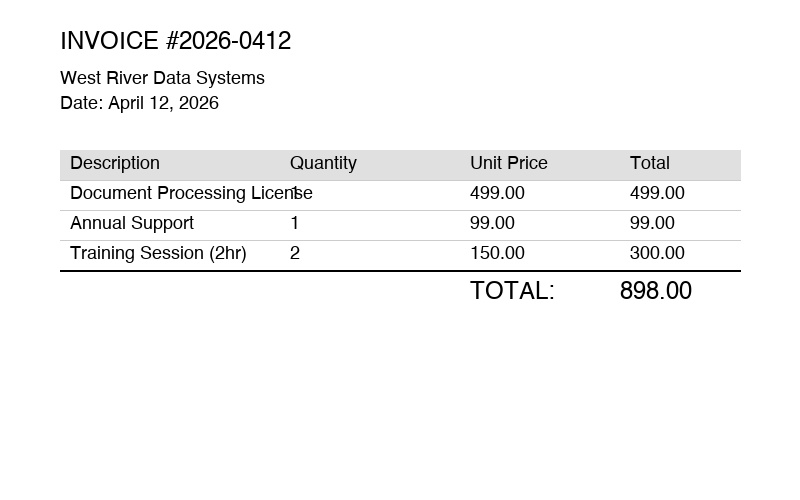
Quick test: download the zip, unzip, drag the folder onto VisionBlitz, pick an output destination, click Process. You'll get a TEXT/ folder, NATIVES/ folder, and a loadfile.dat.
Common questions
What file formats does VisionBlitz support?
TIFF, PNG, JPG/JPEG, PDF (multi-page), BMP, GIF, and HEIC.
What export formats are available?
Concordance DAT and CSV loadfiles with standard Relativity field names (
DOCID, FILEPATH, TEXTPATH, CUSTODIAN, PAGECOUNT). Optional Opticon OPT files for image overlays.Does VisionBlitz send my documents to the cloud?
No. Every recognition pass runs locally via Apple's Vision framework. The app is sandboxed and makes no network connections.
What macOS versions are supported?
macOS 13 (Ventura) or later, on both Apple Silicon and Intel Macs.
How do I get started?
Open VisionBlitz, drag a folder of documents onto the window (or press
⌘O), choose an output location, and click Process.Can I use relative paths in the loadfile?
Yes. Enable Relative paths in Settings before exporting. The loadfile will reference documents via paths like
NATIVES\DOC000001.pdf instead of absolute paths, making the export portable across review platforms.How do I report a bug?
Email support@westriversys.com with your macOS version, VisionBlitz version (About → Version), and a description of what happened. Screenshots help.